

Did you know over 60% of WordPress sites are at risk of cyber attacks because they’re not updated? It’s vital to keep your site up-to-date for both security and functionality. Updating WordPress might seem scary, but with the right steps, you can keep your site secure and running smoothly.
Regular updates fix security holes, so staying current is key. In this guide, we’ll show you how to securely update WordPress. We’ll cover preparation, the update process, and how to fix common problems.
Key Takeaways
- Understand the importance of keeping your WordPress site updated.
- Learn how to prepare your site for a safe update.
- Discover the steps to update WordPress securely.
- Troubleshoot common issues that arise during updates.
- Ensure your site remains functional and secure post-update.
Understanding the Importance of WordPress Updates
Updating WordPress is very important. It keeps your site safe and working well. Updates often bring new security patches, bug fixes, and features that make your site better.
Why Updates Are Crucial for Site Security
Updates are key for keeping your site safe. They fix security holes that hackers could use. If you don’t update, your site could be hacked and your data stolen.
Security updates are vital for a safe website. They close gaps that hackers might use to get into your site.
Benefits of Staying Up-to-Date
Keeping your WordPress site updated has many benefits. It makes your site more secure, runs better, and gets new features. Updates also make sure your site works well with the latest plugins and themes.
- Improved security through the latest patches and fixes
- Enhanced performance due to optimizations and bug fixes
- Access to new features and functionalities
Common Risks of Ignoring Updates
Not updating WordPress can be risky. It can lead to site hacks, data breaches, and problems with plugins and themes. Old versions of WordPress are easy targets for hackers.
By keeping up with updates, you can avoid these risks. This keeps your site safe and running smoothly.
Preparing Your Site for Updates
Before you start updating WordPress, make sure your site is ready. Updates can sometimes cause problems if not done right. So, it’s important to take the right steps to avoid issues.
Backing Up Your WordPress Site
First, create a backup of your site. This way, you can easily restore it if something goes wrong during the update. You can back up your site using plugins like UpdraftPlus or Duplicator, or manually through your hosting provider’s control panel.
To back up with a plugin, follow these steps:
- Install and activate your chosen backup plugin.
- Configure the backup settings to include your files and database.
- Choose a remote storage location for your backups, such as Google Drive or Dropbox.
- Initiate the backup process and wait for it to complete.
Checking Compatibility of Themes and Plugins
After backing up, check if your themes and plugins work with the latest WordPress. If they don’t, your site might not work right. You can check by:
- Looking at the documentation or changelog for your themes and plugins to see if they are compatible with the latest WordPress version.
- Testing your themes and plugins on a staging site before updating your live site.
- Updating your themes and plugins to the latest versions, as updates often include compatibility fixes.
Here’s a comparison table to help you understand the steps involved in preparing your site for updates:
| Preparation Step | Description | Tools/Methods |
|---|---|---|
| Backing Up | Create a backup of your site to prevent data loss. | UpdraftPlus, Duplicator, Manual Backup via Hosting Control Panel |
| Checking Compatibility | Ensure themes and plugins are compatible with the latest WordPress version. | Review Documentation, Test on Staging Site, Update Themes and Plugins |
By following these steps, you can make sure your WordPress site is ready for updates. This way, you can avoid problems and make the update process smooth.
Performing the Update: Step-by-Step
Updating WordPress is important for keeping your site safe and working well. This guide will help you update the core, plugins, and themes. This way, your site stays secure and runs smoothly.
Updating WordPress Core
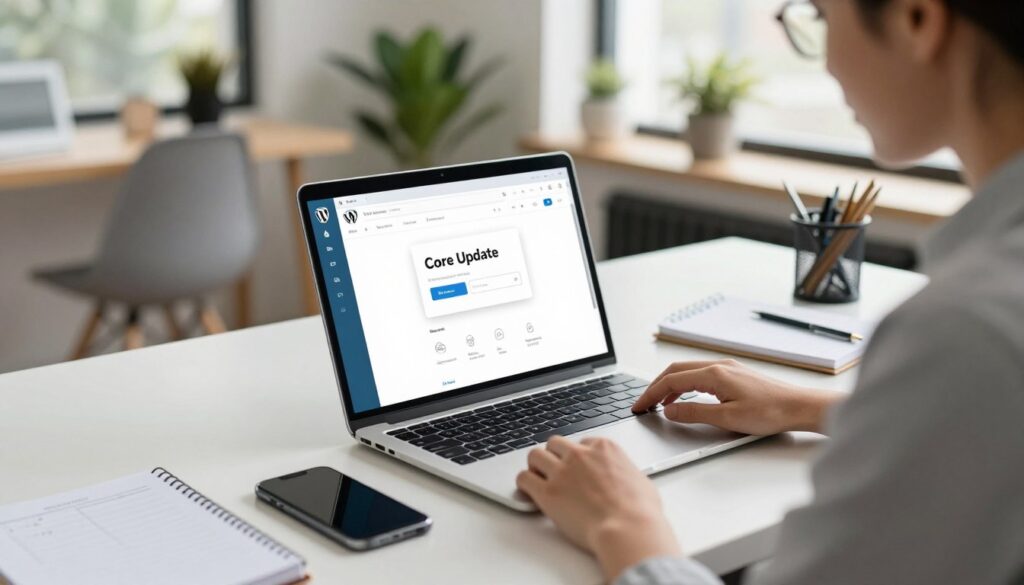
First, update the WordPress core to keep your site current. Go to your WordPress dashboard and find the update notifications. Click “Update Now” to start the update. Always backup your site before updating to avoid losing data.
| Update Step | Description | Importance |
|---|---|---|
| 1. Backup | Backup your WordPress site | High |
| 2. Update Core | Update WordPress to the latest version | High |
| 3. Verify | Check your site for issues post-update | High |
Updating Plugins
Plugins add features to your WordPress site. It’s key to update them for security and performance. Go to the “Plugins” section and update all plugins to the latest versions. Always test your site after updating plugins to find any problems.
Updating Themes
Themes change how your WordPress site looks. Updating your theme keeps it secure and feature-rich. Go to the “Themes” section and update if there’s a new version. After updating, check your site’s look to make sure everything looks right.
By following these steps, you can update your WordPress site safely. This keeps your site secure and running well online.
Utilizing Staging Environments
A staging environment is key for WordPress site owners. It lets you update your site safely without downtime or data loss. It’s a copy of your live site for testing updates, plugins, and themes.
What is a Staging Environment?
A staging environment is a copy of your live WordPress site. It’s where you can test and try things out without affecting your live site. It’s usually on a subdomain or a separate directory, just like your live site.
With a staging environment, you can test updates to WordPress, plugins, and themes. This ensures they work well and find any problems before you use them on your live site.
Benefits of Using Staging for Updates
Using a staging environment for updates has many benefits:
- Reduced Risk: Testing updates in a staging environment lowers the risk of breaking your live site.
- Improved Compatibility: You can see if updates work with your themes and plugins.
- Debugging: Any update issues can be found and fixed in the staging environment.
- Confidence: With a staging environment, you can update your live site with confidence, knowing problems are solved.
By using a staging environment for updates, you’re following best practices for WordPress updates. This makes updating your site smoother and safer.
Troubleshooting Update Issues
Updates can sometimes go wrong, leading to problems like compatibility issues or site errors. It’s key to have a plan to find and fix these issues. This way, you can keep your site up and running without downtime.
Common Problems After an Update
Users often face issues after updating WordPress. These can range from small problems to big errors that make the site hard to use. Some common issues include:
- Plugin or theme incompatibilities that cause features to malfunction or not work at all.
- Site functionality errors, such as broken forms or failed payment processing.
- Performance issues, like slower load times or increased memory usage.
Identifying the root cause of these issues is key. Start by checking the site’s error logs for clues. Then, test plugins and themes one by one to find the problem.
How to Roll Back Changes
If an update causes big problems, you might need to go back to a previous version. You can use backups or version control for this. Backups let you restore your site to a previous state. Version control systems like Git help you track changes and go back to earlier versions of your site’s files.
To roll back changes well, make sure you have:
- A recent backup of your site.
- A version control system in place.
- A clear understanding of how to use these tools to restore your site.
By being ready and knowing how to fix update issues, you can minimize the risk associated with WordPress updates. This helps keep your site running smoothly.
Best Practices for Regular Maintenance
To keep your WordPress website running smoothly, adopting a regular maintenance routine is essential. This involves several key practices that ensure your site remains secure, updated, and performs optimally.
Scheduling Regular Updates
Regular updates are key to keeping your WordPress site safe and running well. This includes updating WordPress core, plugins, and themes. By scheduling these updates, you can prevent your site from being vulnerable to known security exploits.
Here are some steps to follow for scheduling regular updates:
- Set a regular schedule to check for updates.
- Prioritize updates based on their urgency and importance.
- Use tools or plugins that notify you when updates are available.
As Matt Mullenweg, the founder of WordPress, once said, “The beauty of WordPress is that it’s a community effort.” Keeping your WordPress site updated is part of contributing to this community by ensuring your site is secure and functional.
“The key to maintaining a secure WordPress site is regular updates and vigilance.”
Monitoring Site Performance Post-Update
After updating your WordPress site, it’s important to check how it’s doing. Look for any issues that might have come up, like compatibility problems or performance drops.
| Performance Metric | Pre-Update | Post-Update |
|---|---|---|
| Page Load Time | 2.5s | 2.2s |
| Server Response Time | 0.5s | 0.4s |
Checking these metrics helps you spot and fix problems quickly. This keeps your site fast and reliable. Tools that monitor site performance can give you insights into how updates affect your site.
By following these best practices, you can ensure your WordPress site remains secure, updated, and performs well. This provides a great experience for your users.
Choosing the Right Hosting Provider
Finding the right hosting provider is key to a smooth WordPress update. Your host’s role is huge in how updates go down. It affects how easy and safe the process is.
How Hosting Affects Updates
Your host can really change the update game. Some offer cool features like staging environments and automatic backups. A staging area lets you test updates first, which lowers the risk of messing up your site. And, automatic backups mean you can easily get your site back if something goes wrong.
Also, a great host usually has reliable customer support. This is super helpful if you run into problems during or after an update. They can help fix issues fast.
Recommended WordPress Hosting Services
When picking a host for your WordPress site, look for ones that are WordPress-friendly. Here are some top picks:
- WP Engine: WP Engine is all about managed WordPress hosting. They offer automatic updates, staging areas, and top-notch support.
- SiteGround: SiteGround is known for its WordPress-optimized hosting. They have automatic updates, daily backups, and an easy-to-use control panel.
- Kinsta: Kinsta is a premium managed WordPress host. They focus on performance, security, and support. They also have automatic backups and staging areas.
Choosing the right host can really make a difference in updating WordPress. By picking a host that fits your needs, you can make updates smoother and keep your site safe.
Keeping Your Plugins and Themes Updated
Updating your WordPress plugins and themes is key to keeping your site safe. It also makes sure your site works well with the latest WordPress. If you don’t update, your site might get hacked or not work right.
Importance of Plugin and Theme Updates
Updating plugins and themes is important for many reasons. First, updates often fix security patches to keep hackers out. These fixes are vital to protect your site from being hacked.
Second, updates add new features and make your site better. You might get new shortcodes, a better look, or faster performance. These changes make your site more useful and attractive.
Lastly, updates keep your site working with the latest WordPress. WordPress changes often, and old plugins and themes might not work anymore. This could cause problems with your site.
How to Find Updated Plugins
It’s easy to find updates for your plugins. Just check your WordPress dashboard:
- Navigate to the Plugins page.
- Look for the update available notification under the plugin name.
- Click Update Now to update the plugin.
For themes, the process is similar:
- Go to the Appearance > Themes page.
- If an update is available, you’ll see an Update Theme button.
- Click this button to update your theme.
Also, check the WordPress Plugin Directory and theme developer sites for updates. Sometimes, updates aren’t available through the WordPress dashboard right away.
By updating your plugins and themes, you make your site safer and more compatible. Regular updates keep your WordPress site healthy, secure, and running smoothly.
Exploring Automatic Updates
WordPress is always changing, and automatic updates can be a smart choice. They keep your site safe and current without much work. This makes keeping your site up-to-date easier.
Enabling Automatic Updates
To turn on automatic updates, you need to change your site’s settings. For WordPress core updates, add define('WP_AUTO_UPDATE_CORE', true); to wp-config.php. For plugins and themes, use special plugins or edit the code yourself.
But, think carefully before turning on automatic updates. They might cause problems with some plugins or themes.
Pros and Cons of Automatic Updates
Automatic updates have many benefits, like better security and less work for you. But, they can also have risks, like breaking your site.
The good things about automatic updates are:
- Improved Security: Your site gets security fixes fast, making it safer.
- Time Efficiency: Updates happen automatically, saving you time for other things.
But, there are also downsides:
- Compatibility Issues: Updates might mess with plugins or themes, making them not work right.
- Lack of Control: You can’t choose when updates happen, which can be a problem if they cause issues.
To avoid these problems, test updates in a staging area first. Always back up your site too. This way, you can fix things if something goes wrong.
Using Version Control for Revisions
Version control is key for WordPress developers. It helps track changes, work together, and go back to old versions if needed.
It keeps your WordPress site stable and safe during updates. This is vital for big changes or updates.
What is Version Control?
Version control, or source control, tracks your site’s code changes over time. It lets many developers work together without problems. This makes managing big projects easier.
Key features of version control include:
- Change tracking: Monitor modifications to your codebase.
- Branching: Work on different versions of your code independently.
- Merging: Combine changes from different branches into a single version.
- Reverting: Roll back to a previous version if needed.
Benefits of Using Version Control for WordPress
Version control for WordPress has many benefits. It improves teamwork, security, and change management.
Some of the key benefits include:
- Reduced risk: Easily revert to a previous version if an update causes issues.
- Improved collaboration: Multiple developers can work on the same project without conflicts.
- Better change management: Track and manage changes to your site’s code.
With version control, you can update your WordPress site safely. You know you can go back if something goes wrong.
Educating Yourself on WordPress Updates
Keeping up with WordPress updates is key for a safe and efficient website. As WordPress grows, having the right tools and support is vital. This ensures your site stays secure and runs smoothly.
Resources for Learning
For the latest on WordPress updates, check out online tutorials and blogs. WordPress.org and Smashing Magazine are great places to start. They offer tips on updating WordPress safely, keeping your site secure and fast.
Joining WordPress Communities
Being part of WordPress communities can be very helpful. You can get advice and learn from others in forums like the WordPress Support Forum. WordCamps are also great for meeting people who know a lot about WordPress security and updates.