
Managing a website can seem daunting, even for those new to online content creation. With over 60 million websites powered by WordPress, knowing how to use its interface is key to success.
A solid website starts with a strong foundation. That’s where the WordPress dashboard comes in. This guide will help you understand the dashboard’s parts. It will show you how to manage your website well.
By the end of this WordPress dashboard tutorial, you’ll know how to change your website’s look. You’ll also learn to use the dashboard’s features to boost your online presence.
Key Takeaways
- Understand the layout and components of the WordPress dashboard.
- Learn how to customize your website’s appearance.
- Discover how to effectively manage your website using the dashboard.
- Gain confidence in navigating the WordPress interface.
- Unlock the full website.
Understanding the WordPress Dashboard Layout
Managing a WordPress site starts with knowing its dashboard. This is where you create, customize, and check your site. The dashboard is easy to use but has many features that can confuse beginners.
What is the WordPress Dashboard?
The WordPress dashboard is also called the admin area. It’s your site’s control room. Here, you manage content, settings, and check site performance.
Key Features of the Dashboard:
- Content creation and management
- Site settings configuration
- Plugin and theme management
- Performance monitoring
Key Components of the Dashboard
The dashboard has several parts, each with its own job. You’ll find the toolbar, main menu, and dashboard screen.
The Toolbar: At the top, the toolbar gives you quick access to WordPress tools. You can create new content, view your site, and check your profile.
| Component | Description |
|---|---|
| Toolbar | Quick access to WordPress features |
| Main Menu | Navigation menu for accessing different sections of the dashboard |
| Dashboard Screen | The main area where you can view site information, create content, and more |
Customizing Your Dashboard View
Customizing your dashboard makes it more personal. You can add or remove widgets, change their order, and more. This makes it easier to find what you need.
“Customizing your WordPress dashboard is like organizing your workspace; it helps you work more efficiently by having the tools you need at your fingertips.” – WordPress Expert
To customize your dashboard, you can:
- Add widgets for quick access to important info.
- Remove unused widgets to keep your dashboard clean.
- Rearrange widgets to focus on what’s most important to you.
By understanding and customizing your WordPress dashboard, you can make managing your site easier and more efficient.
Navigating the Dashboard Menus
Managing your WordPress site starts with knowing the dashboard menus. The dashboard is the core of your site. It gives you access to all tools and features for creating, managing, and customizing your site.
Overview of the Main Menu
The main menu in the WordPress dashboard is your main navigation tool. It links to key areas like posts, pages, and media. Knowing this menu well is key for managing your site efficiently.
The main menu is on the left side of the dashboard screen. It leads to various sections, including:
- Posts: Manage your blog posts, including creating new posts, editing existing ones, and organizing them into categories.
- Pages: Create and manage static pages on your site, such as the home page, about page, and contact page.
- Media: Upload and manage media files, including images, videos, and documents.
| Menu Item | Description |
|---|---|
| Posts | Manage your blog posts, including creating new posts and editing existing ones. |
| Pages | Create and manage static pages on your site. |
| Media | Upload and manage media files, including images, videos, and documents. |
Understanding the Toolbar
The toolbar at the top of the screen gives quick access to various functions and settings. It has shortcuts for common tasks, like creating new content and viewing your site.
Key Features of the Toolbar:
- Site Title: A link to your site’s homepage.
- New Content: Quick links to create new posts, pages, and media.
- User Profile: Access to your user profile and settings.
Admin Bar vs. Dashboard
It’s important to know the difference between the admin bar and the dashboard. The admin bar is a shortcut menu on your site’s front end when logged in. The dashboard is the back-end for managing your site.
The admin bar gives quick access to tasks like editing pages and managing comments from the front end. The dashboard is where you’ll spend most of your time managing your site’s content, settings, and features.
Managing Your Posts
To keep your WordPress site engaging, managing your posts is key. This means creating new content, updating old posts, and organizing them with categories and tags.
Creating a New Post
Making a new post on your WordPress site is easy. Just click the “Add New” button under “Posts” in your dashboard. Then, you’ll get to the post editor. Here, you can add a title, content, and any media you like.
Key Elements of a New Post:
- Choose a title that grabs attention.
- Use the content editor to write your text, making it easy to read.
- Add images or videos to make your post more interesting.
Editing Existing Posts
Editing posts lets you update info, fix mistakes, or boost SEO. To edit a post, go to the “Posts” section in your dashboard. Find the post you want to edit and click its title or “Edit” link.
Tips for Effective Post Editing:
- Check your post for spelling and clarity errors.
- Update any old info to keep your content fresh.
- Use relevant keywords in your title and meta description for better SEO.
Categories and Tags
Categories and tags help organize your posts and improve user experience. Categories are broad topics that group related posts. Tags are specific keywords that describe your post’s content.
| Feature | Categories | Tags |
|---|---|---|
| Purpose | Group related posts | Describe post content |
| Scope | Broad topics | Specific keywords |
| Example | Tutorials, Reviews | WordPress, SEO, Plugins |
Using categories and tags well can make your site easier to navigate and improve SEO. This helps visitors find related content and boosts your site’s visibility.
Working with Pages
Learning to work with pages is key for any WordPress user. Pages are a core part of your site’s layout. They hold static content that doesn’t change much over time.
Difference Between Posts and Pages
Many new WordPress users wonder about posts and pages. Posts are for dynamic content, like news or blog entries. They are dated and categorized. On the other hand, pages are static. They hold content that doesn’t change often, like an About page.
Here’s a table to show the difference:
| Feature | Posts | Pages |
|---|---|---|
| Content Type | Dynamic (News, Blog Entries) | Static (About, Contact) |
| Date and Category | Yes, dated and categorized | No, not typically dated or categorized |
| Purpose | To share updates or articles | To provide static information |
Creating a New Page
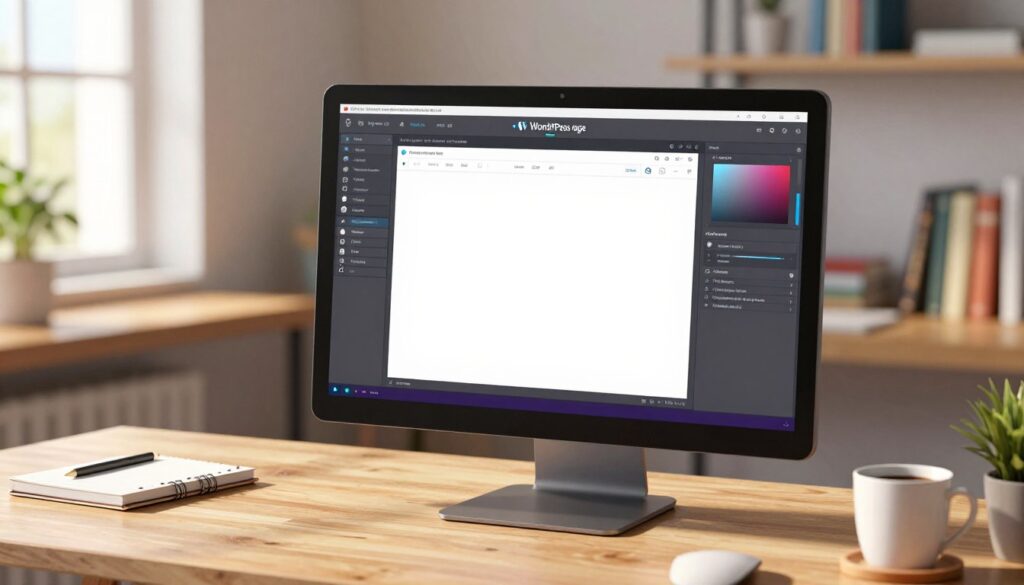
Making a new page in WordPress is easy. Go to the Pages section in your dashboard and click “Add New.” You’ll see a page editor where you can add content and choose a template.
WordPress experts say, “The page editor is where you bring your content to life.” You can format text, add media, and more.
“The flexibility of the WordPress page editor allows you to create pages that are both informative and visually appealing.”
Managing Page Hierarchy
It’s important to manage your page hierarchy well. This keeps your site organized and easy to navigate. You can set parent pages and create a structure.
To manage your page hierarchy, follow these steps:
- Identify your main pages and subpages.
- Use the page attributes section to set parent pages.
- Review your site’s structure regularly to ensure it remains logical and easy to navigate.
By understanding pages in WordPress, you can make a site that’s easy to use and meets your needs.
Uploading and Managing Media
Learning to upload and manage media is essential for engaging content on WordPress. Media files like images, videos, and audio make your site more interesting and user-friendly.
Adding Media to Your Library
To add media, go to the Media section on your WordPress dashboard and click “Add New.” You can upload files from your computer or manage existing ones. It’s important to keep your media organized for easy access and better site performance.
Tips for Uploading Media:
- Use descriptive file names for better organization.
- Optimize images by compressing them before upload.
- Consider using alt text for images to improve SEO.
Inserting Media into Posts and Pages
After adding media to your library, inserting it into posts and pages is easy. When editing, click the “+” icon to add a new block. Then, choose “Image” or “Video” as needed. You can pick from your library or upload new files.
Best Practices for Media Insertion:
- Ensure the media is relevant to the content.
- Use captions to provide context.
- Align media with your text for better readability.
Organizing Media Files
Keeping your media files organized is key for a clean library and better site performance. Use folders and tags to categorize your media. Also, clean up unused media to keep your site running smoothly.
Here’s an example of organizing your media library:
| Media Type | Folder Name | Description |
|---|---|---|
| Images | Blog Posts | Images used in blog articles. |
| Videos | Tutorials | Video tutorials for user guides. |
| Audio | Podcasts | Audio files for podcast episodes. |
By following these tips, you can manage your media files well. This will improve your WordPress site’s user experience.
Managing Comments
Learning to manage comments in WordPress makes your site better for users and builds a strong community. Comments let visitors talk back to your posts, sharing thoughts or asking questions. It’s key to keep these chats positive and engaging.
Viewing and Moderating Comments
To handle comments well, you need to know how to see and manage them. The WordPress admin panel guide makes it easy to check comments. You can approve, reply to, or delete them from the dashboard. This keeps your site clean of spam and off-topic posts.
Managing Comment Settings
WordPress lets you tweak comment settings to fit your site. You can make users sign up before commenting, turn on moderation, or block comments. These options help you control the talks on your site.
To change these settings, go to ‘Settings’ > ‘Discussion’ in your WordPress dashboard. There, you can set up notifications for new comments and close comments on older posts.
Responding to Comments
Talking back to your visitors is key to building a community. It shows you value their opinions and care about their questions. Always keep your responses friendly and professional.
By answering comments, you can clear up any confusion and share more info. This makes your site better for everyone. It also helps you grow a loyal group of visitors who like to chat with you.
Installing and Managing Plugins
WordPress plugins are tools that can make your website better. They add features not in the basic WordPress setup. This makes your site more useful and easy to use.
Understanding Plugins
Plugins are software that add to your WordPress site. They can bring new features or improve old ones. This includes everything from simple contact forms to big e-commerce sites.
Key Benefits of Plugins:
- Add new functionalities to your site
- Enhance existing features for better performance
- Customize your site according to your needs
Installing a Plugin
Installing a plugin is easy. You can find and install them right from your WordPress dashboard.
- Navigate to the Plugins section in your dashboard
- Click on “Add New” to search for plugins
- Type the name or functionality of the plugin you’re looking for
- Click “Install Now” and then “Activate”
If a plugin isn’t in the WordPress repository, you can upload it manually. Download the plugin file, go to the “Upload Plugin” section, and follow the instructions.
Updating and Deleting Plugins
Updating your plugins regularly is key for site security. It also keeps your site working well with the latest WordPress versions.
| Action | Description |
|---|---|
| Update | Keep your plugins current to prevent vulnerabilities |
| Delete | Remove unused plugins to declutter your site and reduce security risks |
“Keeping your plugins updated is one of the simplest ways to protect your site from threats.”
To update a plugin, go to the Plugins section, click on “Update Available,” and follow the prompts. To delete a plugin, first deactivate it, then delete it.
Customizing Your Website’s Appearance
The WordPress dashboard lets you make your site look unique. You can change themes, add widgets, and create menus. This is key to making your site engaging and personal.
Using Themes
Themes are the heart of your WordPress site’s design. They control the layout, look, and feel. With thousands of options, you can find the perfect theme for your site.
When picking a theme, think about responsiveness, customization, and plugin compatibility. A responsive theme makes sure your site looks good on all devices.
Customizing Your Theme Settings
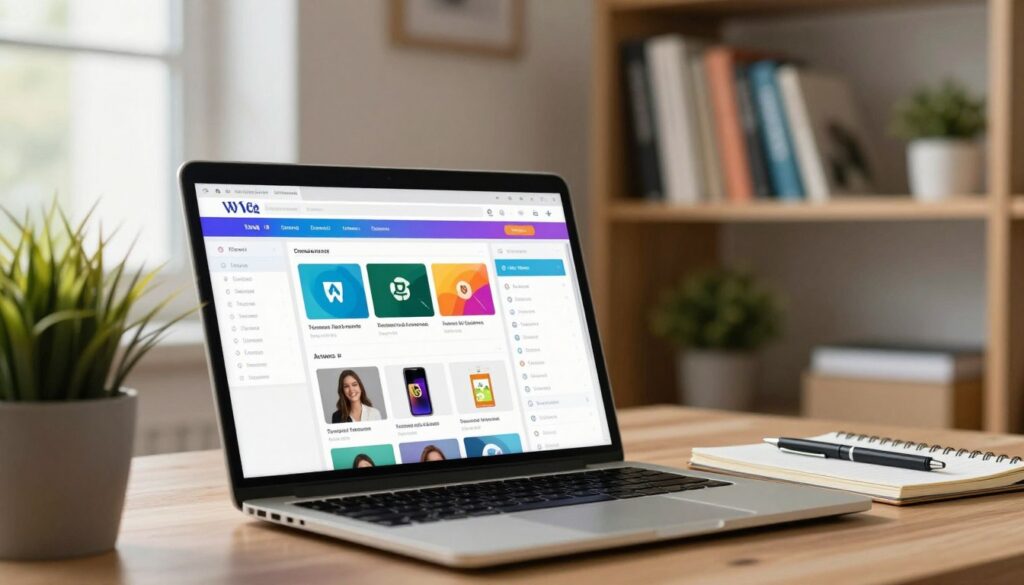
After installing a theme, you can tweak it in the WordPress dashboard. Here, you can change colors, fonts, and more to fit your brand.
You can also adjust the site title, upload a logo, and change the layout. Some themes offer advanced settings for even more customization.
“The right theme can make or break your website. It’s not just about looks; it’s about creating a seamless user experience.”
Widgets and Menus
Widgets and menus add functionality and navigation to your site. Widgets can include contact info, social media links, or recent posts. They go in the sidebar or footer.
Menus help organize your content, making it easier for visitors to find things. You can create custom menus and place them anywhere on your site.
| Feature | Description | Benefit |
|---|---|---|
| Themes | Control the layout and design of your site | Enhances user experience and site aesthetics |
| Widgets | Add functionality to your site’s sidebar or footer | Increases engagement and provides additional information |
| Menus | Organize your site’s content for easier navigation | Improves site usability and visitor satisfaction |
By using themes, customizing settings, and adding widgets and menus, you can make a WordPress site that looks great and works well.
Managing Users and Permissions
User management is key for WordPress site owners. It’s about adding new users, setting roles, and editing profiles. This keeps your site safe and organized.
Adding New Users
To add a new user, go to the ‘Users’ section in your dashboard. Click ‘Add New’ to start. You’ll need to fill in their details, like username, email, and role. Picking the right role is important for access levels.
Key details to consider when adding a new user:
- Username and email address
- User role and its implications
- Password generation and notification
Understanding User Roles
WordPress has several user roles, each with different abilities. Knowing these roles helps manage permissions well.
| User Role | Capabilities |
|---|---|
| Administrator | Full control over the site, including managing other users |
| Editor | Can publish and manage posts, including those of other users |
| Author | Can publish and manage their own posts |
WordPress.org says, “User roles in WordPress are a powerful way to control what users can and cannot do on your site.”
“Understanding and utilizing user roles effectively is key to a secure and efficient site management strategy.”
Editing User Profiles
Editing user profiles lets you update info, change roles, or adjust permissions. To edit a user’s profile, go to the ‘Users’ section, find the user, and click on their username.
Important aspects to consider when editing user profiles:
- Updating contact information
- Changing user roles or capabilities
- Managing user passwords and security
Managing users and permissions is essential for a secure WordPress site. By knowing how to add users, assign roles, and edit profiles, you keep your site safe and accessible.
Understanding Site Settings
Managing your site settings is key for a smooth user experience and good content management. These settings control how your content looks, your site’s title, and your URLs’ structure.
General Settings Overview
The general settings section lets you set up your site’s basic info. You can change your site title and tagline here. These are important for your site’s brand and SEO. You can also set your WordPress address (URL) and Site address (URL), but they usually stay the same.
- Site Title: The name of your site, shown in the header and in search results.
- Tagline: A short description of your site, often seen below the title.
- WordPress Address (URL) and Site Address (URL): These should usually match unless your WordPress files are in a different folder.
Reading Settings
Reading settings affect how your content appears on your site. You can pick whether your front page shows new posts or a static page. You can also decide how many posts to show on your blog page and in RSS feeds.
- Front page displays: Pick between showing your latest posts or a static page.
- Blog pages show at most: Set how many posts to display on your blog page.
- Syndication feeds show the most recent: Choose how many posts to include in your RSS feed.
Permalinks Configuration
Permalinks are permanent URLs for your content. Setting up your permalink structure is important for SEO and user experience. You can pick from common structures or create your own.
- Plain: A basic structure that includes the post ID.
- Post name: A clean structure that includes the post title, good for SEO.
- Custom Structure: Let you create a custom permalink structure using tags.
By understanding and managing these settings well, you can make your site more functional. This improves user experience and helps your site show up better in search results.
Utilizing WordPress Tools
WordPress gives users many tools to make managing sites easier and faster. These tools help with tasks, keep sites healthy, and offer insights into how your site works.
Import and Export Tools
WordPress has great import and export tools. They let you move content between sites or from other platforms to WordPress. You can move posts, pages, comments, and more with these tools.
To find these tools, go to the WordPress dashboard. Then, click on Tools > Import or Export. You can pick what content to move, based on your needs.
Site Health Check
The Site Health Check tool is great for keeping your WordPress site running well. It gives you a detailed report on your site’s health. It shows what needs work and how to fix it.
To use the Site Health Check, go to the WordPress dashboard. Then, click on Tools > Site Health. The tool checks your site’s setup, security, and speed. It gives you tips to make your site better.
Other Useful Tools
WordPress has more tools than just import/export and site health checks. There are debugging tools, performance plugins, and more.
| Tool | Description | Benefit |
|---|---|---|
| Debugging Tools | Help identify and resolve issues on your site | Improves site stability and performance |
| Performance Optimization Plugins | Enhance your site’s loading speed and efficiency | Better user experience and SEO ranking |
| Security Plugins | Protect your site from malware, spam, and other threats | Enhanced security and peace of mind |
Using these tools can make your WordPress site better in many ways. It can improve how your site works, keeps it safe, and makes it run faster. By using these tools, you can keep your site up-to-date and running smoothly.
Backing Up and Maintaining Your Site
Learning the WordPress dashboard is key to managing your website well. It’s important to back up your site regularly and keep it in good shape. This protects your content and keeps your business running if something goes wrong.
Protecting Your Content
Backing up your site is a must to keep your content safe. Use trusted backup plugins to automate this task. This way, you can rest easy knowing your data is safe. Plugins from Automattic and WP Rocket are good choices.
Regular Maintenance
Keeping your site up to date is essential for its security and performance. Update your plugins and themes, check how your site is doing, and fix problems fast. Learning from a WordPress dashboard video tutorial can help you keep your site in great shape.
Focus on backups and maintenance to safeguard your site. This lets you keep creating content and growing your online presence without worry.