
Did you know that 40% of websites on the internet use WordPress? This Content Management System (CMS) is known for its flexibility and ease of use. But, it’s easy to make mistakes that can hurt your site’s performance and security.
Starting a website is exciting, but making costly mistakes can harm your site. In this article, we’ll cover the most common WordPress beginner mistakes. We’ll also give you practical tips to fix them, so your site runs smoothly.
Key Takeaways
- Understand the most common errors made by beginners
- Learn how to fix these mistakes to improve your site’s performance
- Discover practical tips to enhance your website’s security
- Improve your site’s overall health and user experience
- Avoid costly mistakes that can impact your site’s success
Not Choosing the Right Hosting Provider
A reliable hosting provider is key to a successful WordPress website. It ensures your site is always up, loads fast, and is secure. Choosing the right hosting can help you avoid common WordPress pitfalls that beginners often face.
Importance of Reliable Hosting
Good hosting is vital for a great user experience and a stable website. A top hosting provider offers strong infrastructure, great support, and grows with your site. This is key for reducing downtime and improving site performance.
| Feature | Shared Hosting | Managed Hosting |
|---|---|---|
| Cost | Budget-friendly | More expensive |
| Performance | Variable | High |
| Security | Basic | Advanced |
| Scalability | Limited | Highly scalable |
| Technical Support | Limited | Comprehensive |
Shared vs. Managed Hosting
It’s important to know the difference between shared and managed hosting. Shared hosting is cheaper, where many sites share the same server. It’s good for small sites or beginners but lacks the security and performance of managed hosting. Managed hosting gives you dedicated resources, better security, and expert help.
How to Select the Best Hosting Option
To pick the best hosting, think about your site’s traffic, the support you need, and how scalable the hosting is. You should match your needs with the hosting provider’s offerings. This way, you can avoid common errors in WordPress and build a strong site.
When looking at hosting providers, check for uptime, speed, and support. Reading reviews and comparing options can help you choose wisely. The right hosting boosts your site’s performance and security, leading to a better user experience.
Ignoring Updates and Backups
Many WordPress site owners don’t see the big deal about updates and backups. But, keeping your site updated is key for its safety and how well it works. Updates bring new security fixes and features.
Why Regular Updates Matter
Updates are important because they often include security fixes. These fixes help prevent hackers from getting in. Plus, updates can make your site run better and faster.
Regular updates offer many benefits:
- They add new security patches to protect your site.
- They make your site work better and faster.
- They keep your site compatible with the latest plugins and themes.
Best Backup Plugins to Use
Having a good backup system is key to keeping your site’s data safe. There are many great backup plugins out there. Some top picks include:
| Plugin Name | Features | Price |
|---|---|---|
| UpdraftPlus | Automated backups, cloud storage integration | Free/Paid |
| VaultPress | Real-time backups, malware scanning | Paid |
| BackupBuddy | Full site backups, easy migration | Paid |
Choosing the right backup plugin depends on your site’s size and your support needs.
Creating a Backup Schedule
Having a regular backup schedule keeps your site’s data safe. It’s best to back up at least once a week. But, if your site updates often, daily backups are better.
Here’s what to think about when setting up a backup schedule:
- Decide how often to back up based on your site’s update frequency.
- Pick a backup plugin that fits your schedule.
- Save backups in a safe, offsite place like cloud storage.
By focusing on updates and backups, you can keep your WordPress site safe from threats and data loss. This ensures your site is secure and reliable online.
Overlooking SEO Basics
Many WordPress beginners forget about SEO basics. Search Engine Optimization (SEO) is key to getting your site seen by search engines. It also helps bring more visitors to your site.
Understanding On-Page SEO
On-page SEO makes your web pages better for search engines. It includes meta tags, headings, and content optimization. Knowing these can really help your site show up more.
- Meta tags give search engines info about your page.
- Headings make your content easy to read and highlight keywords.
- Content optimization means using keywords well and making your content great.
Using SEO Plugins Effectively
SEO plugins make optimizing easier. Tools like Yoast SEO and All in One SEO Pack help a lot. To get the most out of them, focus on:
- Choosing the right meta titles and descriptions.
- Improving your headings and content.
- Making your site load fast and work well on mobile.
“SEO is not just about search engines; it’s about providing a good user experience.” –
Common SEO Mistakes to Avoid
Staying away from common SEO mistakes can really help your site. Some mistakes to avoid include:
- Keyword stuffing: Using too many keywords in your content.
- Duplicate content: Posting the same content over and over.
- Ignoring mobile responsiveness: Not making sure your site works well on mobile.
By knowing and avoiding these mistakes, you can make your site’s SEO better. This will help attract more visitors.
Failing to Choose an Appropriate Theme
Choosing the wrong WordPress theme is a common mistake. Your theme affects how your site looks and works. It also impacts how users experience your site.
Signs of a Good WordPress Theme
A good WordPress theme should work well on all devices. It should also be secure and keep up with WordPress updates. Look for these signs:
- Responsive Design: Your site looks good on all devices.
- Security: It gets regular updates and is well-coded.
- Customization Options: You can change it easily without coding.
- Performance: It loads quickly.
- Support: The developers offer good support.
Customizing Your Theme Responsibly
Customizing your theme wisely is key. This helps keep your site fast and secure. Here are some tips:
- Use a Child Theme: This keeps your changes safe during updates.
- Limit Customizations: Only make changes you need to.
- Test Thoroughly: Make sure your site works right after changes.
By picking the right theme and customizing it wisely, you can make a great user experience. This helps you avoid common WordPress mistakes.
Neglecting Mobile Responsiveness
In today’s world, having a mobile-responsive website is essential. Most people use their phones to browse the internet. So, making sure your site works well on mobile is key for a good user experience and keeping your search engine rankings up.
The Importance of Mobile-Friendly Design
A mobile-friendly design makes your website easy to use on small screens. This is important because many people visit your site on their phones. If your site isn’t mobile-friendly, visitors might leave quickly because they can’t navigate or read easily.
Key benefits of a mobile-friendly design include:
- Improved user experience for mobile visitors
- Better search engine rankings, as mobile-friendliness is a ranking factor
- Increased engagement and conversion rates
How to Test Mobile Responsiveness
Testing if your website works well on mobile is easy with the right tools. Google’s Mobile-Friendly Test tool is a popular choice. It checks your site and tells you if it’s mobile-friendly.
Steps to test mobile responsiveness:
- Use Google’s Mobile-Friendly Test tool to analyze your site
- Check your website on different mobile devices to ensure it looks and functions as expected
- Utilize browser developer tools to simulate different screen sizes and devices
By making sure your WordPress site is mobile-responsive, you can meet the needs of most visitors. This improves their experience and boosts your site’s performance.
Misconfiguring Permalinks
Setting up permalinks right is key for a good user experience and SEO. Permalinks are the permanent URLs of your WordPress pages and posts. They help with navigation and search engine indexing.
What Are Permalinks?
Permalinks are the URLs for your WordPress site’s content. They are called “permalinks” because they stay the same over time. A good permalink is easy for users and search engines to understand.
Key characteristics of a good permalink include:
- Being descriptive and concise
- Including relevant keywords
- Avoiding unnecessary characters and numbers
Best Practices for Permalink Structure
Choosing the right permalink structure is important for SEO and user experience. Here are some tips:
- Use descriptive URLs: Include keywords that describe the content.
- Avoid special characters: Use letters, numbers, and hyphens for clean URLs.
- Keep it concise: Short URLs are easier to read and remember.
- Use hyphens to separate words: Hyphens are better than spaces for search engines.
| Permalink Structure | Description | Example |
|---|---|---|
| Plain | Simple URL structure without any parameters | https://example.com/?p=123 |
| Day and Name | Includes the date and post name | https://example.com/2023/07/25/sample-post/ |
| Post Name | Uses the post name for the URL | https://example.com/sample-post/ |
| Custom Structure | Allows for a custom-defined structure | https://example.com/%category%/%postname%/ |
By following these tips, you can make your permalink structure better. This will improve your site’s usability and SEO, boosting your WordPress website’s performance.
Using Too Many Plugins
Plugins can make your WordPress site better, but too many can be bad. They add features but can slow your site and risk security. It’s a double-edged sword.
Risks of Plugin Overload
Risks of Plugin Overload
Too many plugins can cause problems:
- They can slow your site down.
- Old or bad plugins can be a security risk.
- They might not work well together, causing issues.
Matt Mullenweg, WordPress founder, said to not overdo it with plugins. This shows the need to be careful and choose wisely.
A WP Engine study found sites with many plugins often have problems. Here’s how too many plugins can affect your site:
| Number of Plugins | Average Load Time | Security Risk Level |
|---|---|---|
| 0-5 | 2-3 seconds | Low |
| 6-10 | 3-5 seconds | Moderate |
| 11+ | 5+ seconds | High |
How to Choose Essential Plugins
To avoid plugin overload, pick carefully. Here’s how to choose the right plugins:
- Think if each plugin is really needed.
- Look at reviews and ratings to see if it’s good.
- Update plugins regularly for security and speed.
- Use plugins from the same developer sparingly to avoid conflicts.
Being smart about plugins keeps your WordPress site fast and safe. As
“The key to a successful WordPress site is not just about adding features, but also about maintaining simplicity and security.”
In summary, managing plugins well is key to a healthy WordPress site. Knowing the risks and being selective keeps your site running smoothly and securely.
Not Configuring User Roles Properly
Knowing how to set up WordPress user roles is key to keeping your site safe and running smoothly. Roles decide what actions users can take on your site. This is why setting them up right is so important.
Understanding WordPress User Roles
WordPress has five main user roles: Administrator, Editor, Author, Contributor, and Subscriber. Each role has specific abilities that tell users what they can and can’t do.
- Administrator: Has complete control over the site, including installing plugins and themes, managing users, and changing settings.
- Editor: Can publish and manage posts, including others’, and has access to some site settings.
- Author: Can publish and manage their own posts.
- Contributor: Can write and manage their own posts but can’t publish them.
- Subscriber: Can only manage their profile and read content.
Knowing these roles is the first step to managing permissions well on your WordPress site.
Managing Permissions Effectively
To manage permissions well, you need to give the right role to each user based on their job and needs. Here are some tips:
- Limit the number of users with Administrator privileges to lower security risks.
- Use Editor and Author roles for managing content, depending on how much control you want to give.
- For users who want to contribute but can’t publish, use the Contributor role.
By managing user roles carefully, you can avoid common WordPress mistakes. This helps keep your site safe from unauthorized access.
Setting up user roles correctly is a big part of managing a WordPress site. By understanding the different roles and managing permissions well, you can make your site more secure and efficient. This helps avoid mistakes that new WordPress users often make.
Forgetting to Optimize Images
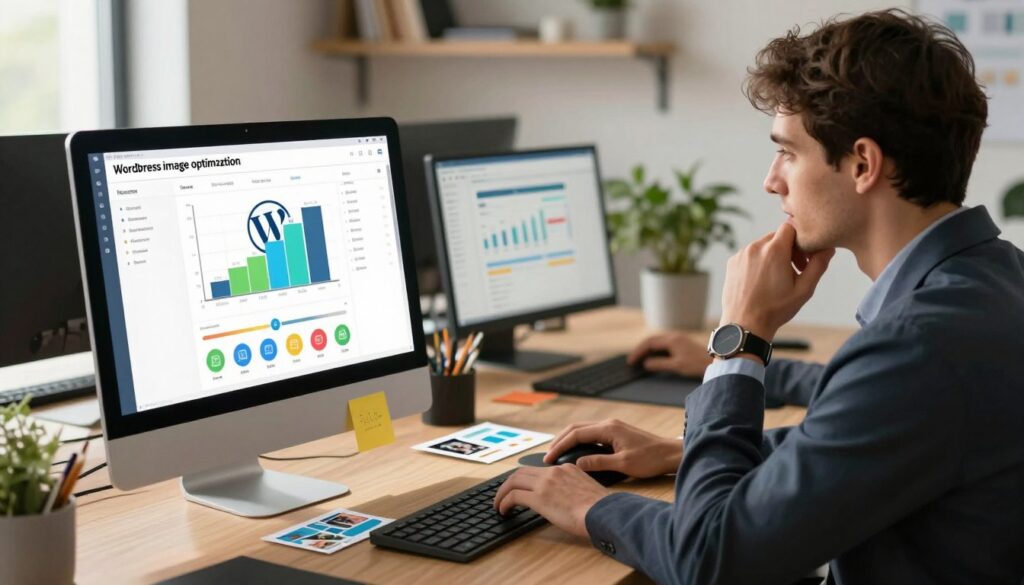
Many WordPress users forget that optimizing images is key to a fast site. Big, unoptimized images slow down your website. This hurts user experience and search engine rankings.
Impact of Image Size on Loading Time
The size of your images affects your site’s speed. Large images take longer to load. This can lead to more people leaving your site quickly.
Even with a fast host, big images can slow things down. It’s important to resize and compress images before uploading. This makes them smaller and faster for the web.
Tools for Image Optimization
There are many tools to help optimize your images. Image compression plugins like TinyPNG and ImageOptim can shrink images automatically. Adobe Photoshop and GIMP also help by resizing and compressing images before upload.
Using these tools can make your images smaller and faster. This makes your WordPress site run better and gives visitors a smoother experience.
Failing to Utilize Analytics
Knowing how your website performs is key, but many WordPress users miss out on analytics. Analytics tools give you insights into how visitors use your site. This helps you spot areas to improve and see if your content and marketing are working.
Importance of Tracking Visitor Behavior
It’s vital to track how visitors act on your site. This lets you make smart choices to improve your site and user experience. By seeing how visitors move around, you can make your content and layout better for them.
Key benefits of tracking visitor behavior include:
- Identifying popular content and areas of high engagement
- Understanding user demographics and interests
- Optimizing site navigation and layout for better user experience
Recommended Analytics Tools
There are many analytics tools to help you track visitor behavior and improve your WordPress site. Some top tools are:
| Tool | Description | Key Features |
|---|---|---|
| Google Analytics | A detailed analytics tool that shows website traffic and user behavior. | Traffic analysis, user demographics, conversion tracking |
| Jetpack | A WordPress plugin that offers site statistics, security, and performance enhancements. | Site stats, security features, performance optimization |
| Matomo | An open-source analytics platform that provides detailed insights into website traffic and user behavior. | Traffic analysis, user tracking, customizable dashboards |
Using these analytics tools can help you understand your website better. This way, you can make informed decisions to enhance your site and avoid common WordPress mistakes.
Not Engaging with the Community
Getting involved with the WordPress community is key to avoiding common mistakes. It helps you reach your site’s goals. By joining online forums and networking, you gain access to a lot of knowledge and resources.
Benefits of Community Involvement
Being part of WordPress forums and groups keeps you in the loop with new trends and practices. You learn from others who faced similar issues. This way, you avoid common mistakes and errors.
Networking Opportunities
Connecting with other WordPress users opens doors to collaborations and opportunities. Being active in the community lets you share your knowledge and experiences. This helps others and boosts your presence in the WordPress world.
By not making the mistake of not engaging with the community, you make managing your WordPress site easier.