

Did you know that many websites lose data every year? A recent survey showed that about 60% of businesses that lose a lot of data close within six months. This highlights why WordPress site owners need a good backup plan.
Backing up your site is more than just keeping your data safe. It’s about keeping your online presence alive. With the right backup best practices, you can protect your site from hacking, server crashes, or accidental deletions.
Knowing the value of backups and using the right strategies can keep your site safe. This guide will show you how to back up your WordPress site. You’ll learn how to keep your online presence secure.
Key Takeaways
- Understand the importance of having a backup strategy for your WordPress site.
- Learn about the different types of backups available.
- Discover how to choose the right backup plugin for your needs.
- Follow a step-by-step guide on how to back up your WordPress site.
- Implement best practices to ensure your site’s security and quick recovery.
Why Backing Up Your WordPress Site is Essential
Backing up your WordPress site is not just a precaution; it’s a must in today’s digital world. Data loss can happen due to hacking, server crashes, or mistakes. Having a good backup system is key to keeping your site safe and running smoothly.
Protect Against Data Loss
Data loss can come from hacking incidents, server failures, or accidental deletions. Without a backup, getting back lost data is hard or impossible. Regular backups keep your site’s data safe and ready to be restored quickly if needed.
- Protects against hacking and malware attacks
- Safeguards against server crashes and technical failures
- Prevents loss of critical data due to human error
The Importance of Regular Updates
Regular updates keep your WordPress site secure and working well. But, updates can sometimes cause problems like compatibility issues or site crashes. Backing up your site before big changes helps you recover if something goes wrong.
“Regular backups are a safety net for your website, allowing you to recover quickly from any issues that may arise during updates or other maintenance tasks.”
Recovery Options in Case of Emergencies
If disaster strikes, a recent backup of your WordPress site is your best recovery option. This way, you can quickly restore your site to a previous state. Backups are your first defense against hacks, server failures, or other problems.
- Identify the cause of the data loss or site issue
- Restore your site from the most recent backup
- Verify that the site is functioning correctly and securely
Understanding the value of WordPress backups and having a solid backup plan is essential. It protects your site from data loss, makes updates smoother, and gives you peace of mind. Knowing you can recover your site in an emergency is priceless.
Types of WordPress Backups
It’s key to know the different WordPress backup types to protect your site. With many options, picking the right one can be tough. We’ll look at the main types of WordPress backups to help you choose wisely.
Full Backups vs. Incremental Backups
Choosing between full and incremental backups is a big decision. Full backups make a complete copy of your site, including files and databases. This ensures you can restore your site exactly as it was at backup time.
Incremental backups only save changes made after the last backup. This saves space and time. But, you need the last full backup and all incremental backups to restore your site.
Manual Backups vs. Automated Backups
Deciding between manual and automated backups is another big choice. Manual backups need you to start the backup process yourself. This gives you control but depends on you remembering to do it.
Automated WordPress backups schedule backups for you, so you don’t have to remember. This is great for busy people or those with many sites.
Database vs. File Backups
Deciding what to backup is also important. Database backups save your WordPress database, which holds your site’s content. This is vital for your site’s core content.
File backups save all your site’s files, like themes and plugins. Your files are what make your site work and look the way it does.
The best backup solution should include both database and file backups. This way, you get full protection for your website.
How to Choose the Right Backup Plugin
Choosing the right backup plugin for your WordPress site is key to keeping your data safe. With many options out there, picking the best one can be tough.
Popular Backup Plugins Overview
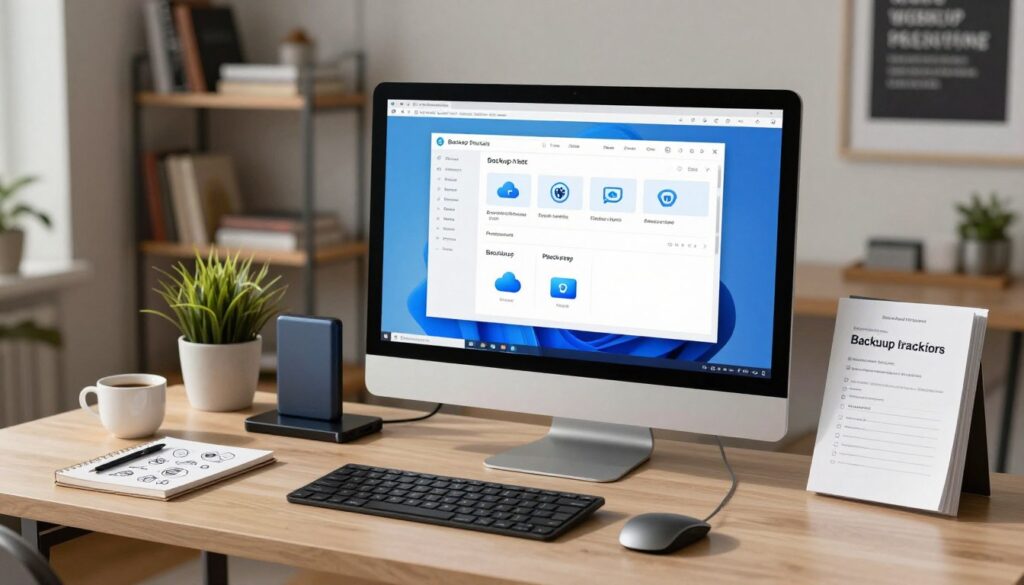
Several backup plugins are known for their reliability and features. UpdraftPlus is easy to use and offers many backup options. BackupBuddy is also popular, with advanced features like migration and restoration.
VaultPress and Duplicator are other notable plugins. VaultPress is known for its real-time backups. Duplicator is great for site migrations.
Features to Look For
When picking a backup plugin, look for certain features. Backup frequency is important, as it shows how often your site’s data is backed up. Choose a plugin that lets you schedule backups at the right intervals.
- Easy restoration process: Being able to easily restore your site from a backup is key.
- Storage options: Look for a plugin that offers various storage options, including cloud services.
- Security: Make sure the plugin encrypts your backups to keep your data safe.
Compatibility with Your Hosting
It’s important to pick a backup plugin that works with your hosting provider. Some plugins might need specific hosting setups. Checking compatibility helps avoid problems.
By thinking about these points and looking at popular plugins, you can choose the best one for your WordPress site.
Step-by-Step Guide to Back Up a WordPress Site
To protect your WordPress site from data loss, follow this backup guide. Regular backups are key to keeping your data safe and sound.
Using a Backup Plugin
Backup plugins make securing your WordPress site easy. Tools like UpdraftPlus, BackupBuddy, and VaultPress offer top-notch backup solutions. Here’s how to use one:
- Install and activate your chosen plugin from the WordPress repository or your preferred provider.
- Configure the backup settings, including the frequency of backups and the storage location.
- Initiate a manual backup to ensure your site is protected immediately.
Manual Backup Process
If you like doing things yourself, manual backups are an option. This involves:
- Accessing your site’s files via FTP or your hosting provider’s file manager.
- Downloading the
wp-contentfolder and your database via phpMyAdmin. - Storing these files in a secure location, such as an external hard drive or cloud storage.
Cloud Backup Options
Cloud backup services add extra security to your WordPress site. You can use Amazon S3, Google Drive, or Dropbox with your backup plugin or alone. When picking a cloud service, think about:
- The security features offered by the service.
- The cost and storage limits of the plan.
- The ease of integrating the service with your WordPress site.
By following these steps and exploring your options, you can keep your WordPress site backed up securely. This follows WordPress backup best practices.
Best Practices for WordPress Backups
To keep your WordPress site safe from data loss, it’s key to follow best backup practices. Good backup strategies protect your site’s data and keep your business running smoothly, even when unexpected things happen.
Frequency of Backups
How often you should back up your site depends on how often it changes. If your site updates daily, you should back up daily or weekly. For sites that don’t change much, monthly backups might be enough. Consistency is key to keeping your backups current.
Storing Backups Safely
Keeping your backups safe is just as important as making them. It’s best to store backups in several places, like off-site storage solutions in the cloud. This way, your backups are safe even if your main site gets hacked.
Testing Your Backups
Just making backups isn’t enough; you also need to make sure you can restore them. Test your backups by restoring them on a test site. This checks if your backups work and gives you peace of mind that you can recover your site if needed.
By sticking to these best practices for WordPress backups, you can make your site much more resilient against data loss and other disasters. Remember, the value of WordPress backups is huge, and spending time on a solid backup plan is a vital part of managing your website.
Restoring Your Website from Backup
Knowing how to restore your WordPress site from a backup is key. It helps when you face hacking, theme or plugin issues, or update mistakes. A recent backup can quickly get your site running again.
How to Restore Using a Plugin
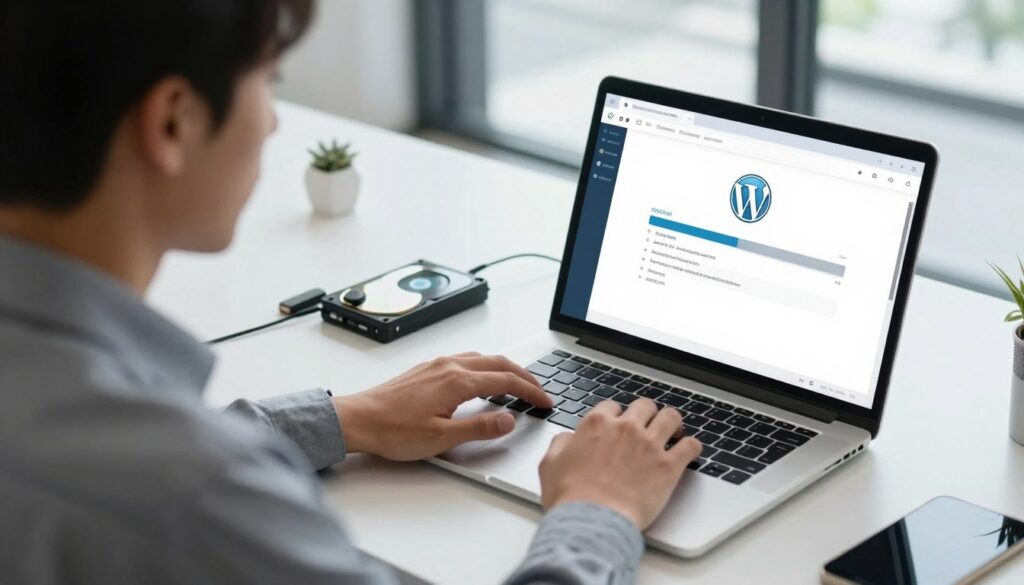
Using a backup plugin to restore your site is easy. Plugins like UpdraftPlus or BackupBuddy make it a one-click process. Here’s how to do it:
- Go to your WordPress dashboard and find the backup plugin section.
- Pick the backup you want to restore from the list.
- Decide what to restore, like the database, files, or both.
- Confirm the restore, knowing it will replace your current data.
Manual Restoration Process
If you’re good with FTP/SFTP or phpMyAdmin, manual restoration works. You’ll upload files to your site’s root and import the database via phpMyAdmin.
To manually restore your site:
- Use an FTP client to upload your backup files to the root directory, replacing old ones.
- Go to phpMyAdmin through your hosting panel and import your database backup.
This method needs technical skills but gives you control over the restore.
Troubleshooting Common Issues
Restoring your site might face issues like a blank dashboard or compatibility problems. Common problems include:
- Incompatible plugin or theme versions.
- Corrupted backup files.
- Server configuration issues.
To fix these, try:
- Checking the backup file integrity.
- Updating plugins and themes before restoring.
- Getting help from your hosting provider or the plugin’s support team.
Restoring your WordPress site from a backup is manageable. With the right tools and knowledge, you can quickly get your site back online.
Strategies for Off-Site Backup Storage
To keep your WordPress site safe, think about using off-site backup storage. This means keeping your backups somewhere else, not just on your main hosting site. It’s key to keep your data safe, even if something goes wrong at your main hosting place.
Why Off-Site Storage Matters
Off-site storage adds an extra layer of protection. It helps prevent data loss from server crashes, hacking, or natural disasters. By keeping backups off-site, you can get your site back up and running fast, even if your main hosting is down.
Key benefits of off-site storage include:
- Protection against local disasters and data loss
- Enhanced security through redundancy
- Faster recovery times in case of emergencies
Cloud Solutions to Consider
Cloud storage is a top pick for off-site backups. It’s scalable, reliable, and easy to get to. Some great cloud storage options for WordPress backups are:
- Amazon S3
- Google Cloud Storage
- Microsoft Azure
These services offer strong storage options. They can work with your WordPress backup plugin, keeping your backups safe off-site.
Local Storage Options
Local storage is another good choice for backups. You can use:
- External hard drives
- USB drives
- Network Attached Storage (NAS) devices
Make sure to keep these local backups in a safe, separate spot. This way, they’ll be safe if something happens at your main site.
Using both cloud and local storage for backups is the best way to protect your WordPress site. It makes your backup plan stronger and gives you peace of mind.
Common Backup Mistakes to Avoid
WordPress site owners often make critical backup mistakes that can lead to irreversible data loss. Understanding these common pitfalls is the first step towards safeguarding your site.
Ignoring Backup Notifications
Many backup plugins and services send notifications when a backup fails or is completed. Ignoring these notifications can lead to unnoticed backup failures, leaving your site unprotected. Make sure you set up your backup solution to alert you of important events. Also, make it a habit to regularly check these notifications.
Automated WordPress backups are designed to simplify the backup process. But they need your attention to notifications to work well. By staying informed, you can quickly address any issues that arise during the backup process.
Only Backing Up Content
A common mistake is to only back up the content, such as posts and pages, without including the database or other critical files. WordPress backup best practices say a full backup should include your database, themes, plugins, and uploads. Not backing up these elements can make restoring your site hard or even impossible.
To avoid this, use a backup plugin that lets you choose what to back up. Make sure your plugin backs up your entire site, including the database and all files. This way, you can fully restore your site in case of a disaster.
Neglecting Security
Neglecting the security of your backups is as risky as not backing up at all. If your backups are not stored securely, they can become a liability. Store your backups in a secure location, like a cloud storage service with strong security features, including encryption and access controls.
Also, consider encrypting your backups for extra protection. This is very important for sites handling sensitive information. By focusing on the security of your backups, you keep your site’s data safe, both on your site and in your backups.
Conclusion: Safeguarding Your WordPress Site
Keeping your WordPress site safe from data loss and disasters needs a solid backup plan. Knowing why backups are key helps keep your site running smoothly and securely.
Key Takeaways
This guide has covered various backup types, like full and incremental backups. We’ve also talked about manual and automated options. Plus, we’ve shared tips on how often to back up, where to store backups, and how to test them.
Take Action Today
Don’t wait until disaster strikes to protect your site. Begin your backup plan now with a trusted plugin like UpdraftPlus or VaultPress. Remember, backups are vital, and acting early will ease your worries.
Further Learning
For more on WordPress backups and the latest security tips, check out WordPress.org or talk to a WordPress pro. Keeping informed and taking the right steps will safeguard your site and help it thrive.